> ## Documentation Index
> Fetch the complete documentation index at: https://www.floe.one/docs/llms.txt
> Use this file to discover all available pages before exploring further.
# Receiving Files with Floe Desktop
> Receive files in Floe Desktop by entering a room code or share link, choosing where they are saved, and opening them as soon as the transfer finishes.
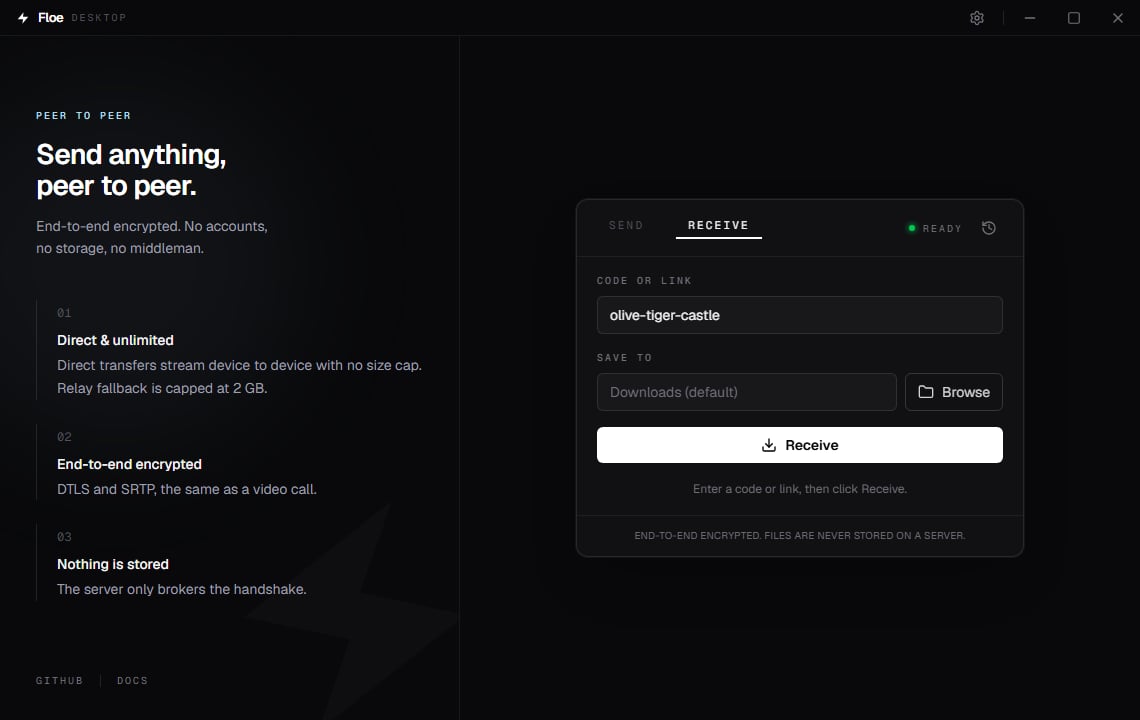
Switch to the **Receive** tab, paste what the sender gave you, and click **Receive**.
 ## Enter a code or link
The **Code or link** field accepts any of these:
* A room code, three words such as `olive-tiger-castle`.
* A share link, for example `https://floe.one/#room=...`.
* A link from an older Floe release that used `?room=` instead.
So whatever the sender copied, pasting it works. Press `Enter` in the field instead of clicking
if you prefer.
## Choose where files land
**Save to** is where everything arrives. Leave it blank and Floe uses your **Downloads** folder.
Click **Browse** to pick another one, or type a path directly. Floe creates the folder if it
does not exist.
Whatever you choose here is remembered for next time. You can also set it once in
[Settings](/docs/desktop/settings#save-received-files-to).
## The transfer
Click **Receive**. Floe joins the room, connects to the sender, and starts writing files
straight to disk. There is nothing to accept: unlike `floe receive` on the command line, the
desktop app starts as soon as it connects. The moment the sender is known, the card shows what
is incoming (the file name and size, or the file count and total) before the first byte lands.
The badge at the top right shows **DIRECT** or **RELAY** once the route is known, and a progress
bar shows the current file with speed and time remaining. **Cancel** stops it.
When it finishes you get a Windows notification, and a transfer that fails raises one too, so
a failure behind a minimized window is never silent. Cancelling does not notify. On success the
card shows where the files went:
* For a single file, **Open** launches it in its usual app and **Show in folder** reveals it in
File Explorer with the file selected.
* For several files, **Show in folder** opens the folder.
## Nothing is ever overwritten
If a file arrives with a name you already have, Floe does not replace it. It adds a number
before the extension, the same way browser downloads do:
```text Example theme={"system"}
report.pdf
report (1).pdf
report (2).pdf
```
This is worth knowing, because a file you expected to find under its original name may be
sitting next to it with a number. The progress line shows the name actually written, and after
a single-file transfer **Show in folder** selects the file that was really written rather than
the name you were expecting.
Folders are not renamed, only the files inside them. Receiving the same folder twice merges it
into the existing one, with the colliding files numbered.
## Received files are marked as downloads
On Windows, Floe tags each file it writes with the mark of the web, the same tag Windows puts
on a browser download. SmartScreen and Office Protected View then treat it like anything else
from the internet: an executable prompts before running, and a document opens read-only until
you choose to enable editing.
This is deliberate. Files arrive from another person's device, and Windows should apply its
normal caution.
The mark is an NTFS feature. If your save folder is on a FAT32 or exFAT drive, which most USB
sticks are, or on a network share that does not support it, the mark cannot be written and
the file arrives untagged. The file itself is saved either way.
## History
Click the clock icon at the top right of the card, or press `Ctrl` `H`, for a list of what you
have sent and received.
## Enter a code or link
The **Code or link** field accepts any of these:
* A room code, three words such as `olive-tiger-castle`.
* A share link, for example `https://floe.one/#room=...`.
* A link from an older Floe release that used `?room=` instead.
So whatever the sender copied, pasting it works. Press `Enter` in the field instead of clicking
if you prefer.
## Choose where files land
**Save to** is where everything arrives. Leave it blank and Floe uses your **Downloads** folder.
Click **Browse** to pick another one, or type a path directly. Floe creates the folder if it
does not exist.
Whatever you choose here is remembered for next time. You can also set it once in
[Settings](/docs/desktop/settings#save-received-files-to).
## The transfer
Click **Receive**. Floe joins the room, connects to the sender, and starts writing files
straight to disk. There is nothing to accept: unlike `floe receive` on the command line, the
desktop app starts as soon as it connects. The moment the sender is known, the card shows what
is incoming (the file name and size, or the file count and total) before the first byte lands.
The badge at the top right shows **DIRECT** or **RELAY** once the route is known, and a progress
bar shows the current file with speed and time remaining. **Cancel** stops it.
When it finishes you get a Windows notification, and a transfer that fails raises one too, so
a failure behind a minimized window is never silent. Cancelling does not notify. On success the
card shows where the files went:
* For a single file, **Open** launches it in its usual app and **Show in folder** reveals it in
File Explorer with the file selected.
* For several files, **Show in folder** opens the folder.
## Nothing is ever overwritten
If a file arrives with a name you already have, Floe does not replace it. It adds a number
before the extension, the same way browser downloads do:
```text Example theme={"system"}
report.pdf
report (1).pdf
report (2).pdf
```
This is worth knowing, because a file you expected to find under its original name may be
sitting next to it with a number. The progress line shows the name actually written, and after
a single-file transfer **Show in folder** selects the file that was really written rather than
the name you were expecting.
Folders are not renamed, only the files inside them. Receiving the same folder twice merges it
into the existing one, with the colliding files numbered.
## Received files are marked as downloads
On Windows, Floe tags each file it writes with the mark of the web, the same tag Windows puts
on a browser download. SmartScreen and Office Protected View then treat it like anything else
from the internet: an executable prompts before running, and a document opens read-only until
you choose to enable editing.
This is deliberate. Files arrive from another person's device, and Windows should apply its
normal caution.
The mark is an NTFS feature. If your save folder is on a FAT32 or exFAT drive, which most USB
sticks are, or on a network share that does not support it, the mark cannot be written and
the file arrives untagged. The file itself is saved either way.
## History
Click the clock icon at the top right of the card, or press `Ctrl` `H`, for a list of what you
have sent and received.
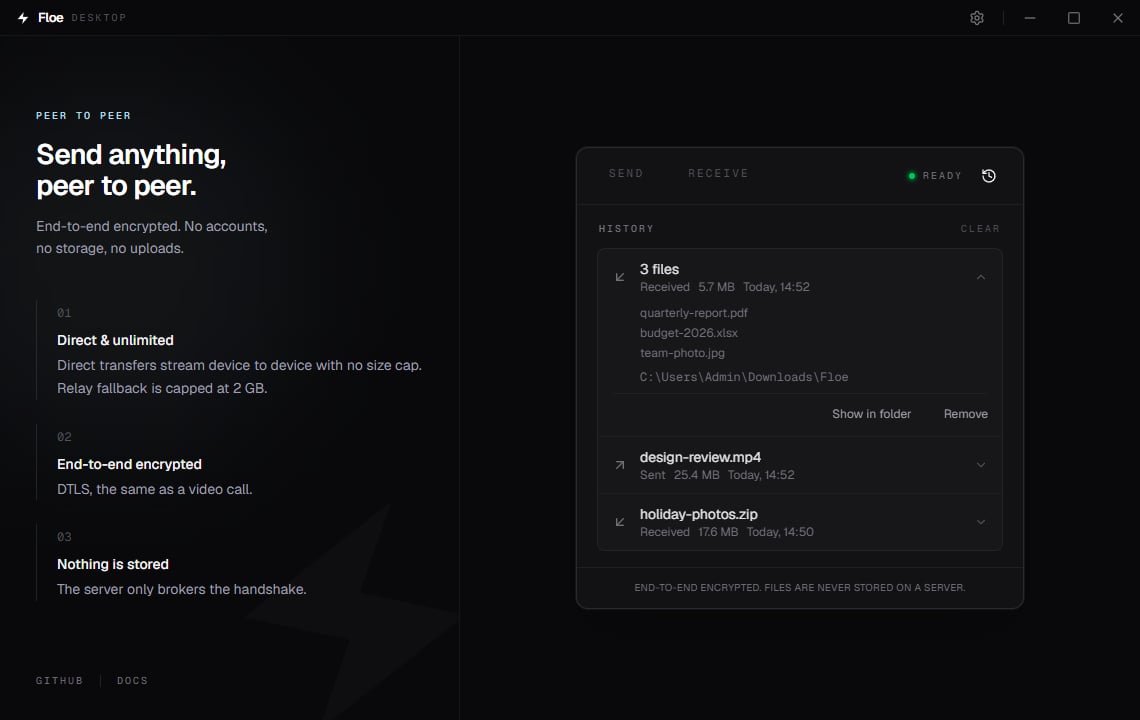 Each row shows the file name (or the count, for a batch), the direction, the size, and when it
happened. Click any row to open it. The panel underneath lists the individual file names and
carries **Remove** along the bottom. A received transfer also says where it was saved and adds
**Show in folder**; a sent transfer has no folder to open, so it shows neither. Click the row
again to close it.
History holds the last 50 transfers. It is stored on your device only and is never sent
anywhere. Remove one entry with **Remove** inside its open row, or **Clear** in the History
header to remove all of them. Clearing history does not touch the files themselves, and it is
a different control from the **Clear** on the send card, which empties what you have staged and
offers an undo.
## Contribute to global stats
After a transfer completes, the receiving side reports **only the number of bytes** to Floe's
server, which adds it to the public counter on the homepage. File names and contents are never
sent, and the sender never reports anything.
It is on by default, and you can turn it off under
[Settings](/docs/desktop/settings#contribute-to-global-stats). When it is off, no request is made at
all.
If you point Floe at your own server, the report goes to that server rather than to floe.one.
## When it does not work
| Message | What it means |
| ---------------------------------------------------- | ---------------------------------------------------------------------------------------------------------------- |
| That code was not recognized ... | The code was mistyped, has passed its 10 minutes, or belongs to a different server from the one you are on. |
| This code is no longer active; ask for a new one | The code is still valid but nobody is sharing with it. The transfer already finished, or the sender closed Floe. |
| Room is full (someone else may already be receiving) | Someone already joined with this code. A room takes one receiver, so ask for a new code. |
If Floe connects but nothing arrives, it gives up after 30 seconds and says the sender never
started sending; ask them to try again. If it never connects at all, check that both of you are
on the same signaling server. See [Troubleshooting](/docs/troubleshooting).
A transfer that fails or is cancelled partway deletes the file it was writing, so nothing
half-written is left behind under a finished-looking name. Files that completed before the
failure are kept, and a retry can use the original name rather than a numbered one.
## Related topics
- [Floe FAQ](/docs/faq.md)
- [Receiving Files with the Floe Web App](/docs/web-app/receiving.md)
- [Sending Files with Floe Desktop](/docs/desktop/sending.md)
- [Floe Quick Start](/docs/quickstart.md)
- [Your files never make a stop.](/docs/introduction.md)
Each row shows the file name (or the count, for a batch), the direction, the size, and when it
happened. Click any row to open it. The panel underneath lists the individual file names and
carries **Remove** along the bottom. A received transfer also says where it was saved and adds
**Show in folder**; a sent transfer has no folder to open, so it shows neither. Click the row
again to close it.
History holds the last 50 transfers. It is stored on your device only and is never sent
anywhere. Remove one entry with **Remove** inside its open row, or **Clear** in the History
header to remove all of them. Clearing history does not touch the files themselves, and it is
a different control from the **Clear** on the send card, which empties what you have staged and
offers an undo.
## Contribute to global stats
After a transfer completes, the receiving side reports **only the number of bytes** to Floe's
server, which adds it to the public counter on the homepage. File names and contents are never
sent, and the sender never reports anything.
It is on by default, and you can turn it off under
[Settings](/docs/desktop/settings#contribute-to-global-stats). When it is off, no request is made at
all.
If you point Floe at your own server, the report goes to that server rather than to floe.one.
## When it does not work
| Message | What it means |
| ---------------------------------------------------- | ---------------------------------------------------------------------------------------------------------------- |
| That code was not recognized ... | The code was mistyped, has passed its 10 minutes, or belongs to a different server from the one you are on. |
| This code is no longer active; ask for a new one | The code is still valid but nobody is sharing with it. The transfer already finished, or the sender closed Floe. |
| Room is full (someone else may already be receiving) | Someone already joined with this code. A room takes one receiver, so ask for a new code. |
If Floe connects but nothing arrives, it gives up after 30 seconds and says the sender never
started sending; ask them to try again. If it never connects at all, check that both of you are
on the same signaling server. See [Troubleshooting](/docs/troubleshooting).
A transfer that fails or is cancelled partway deletes the file it was writing, so nothing
half-written is left behind under a finished-looking name. Files that completed before the
failure are kept, and a retry can use the original name rather than a numbered one.
## Related topics
- [Floe FAQ](/docs/faq.md)
- [Receiving Files with the Floe Web App](/docs/web-app/receiving.md)
- [Sending Files with Floe Desktop](/docs/desktop/sending.md)
- [Floe Quick Start](/docs/quickstart.md)
- [Your files never make a stop.](/docs/introduction.md)