> ## Documentation Index
> Fetch the complete documentation index at: https://www.floe.one/docs/llms.txt
> Use this file to discover all available pages before exploring further.
# Sending Files with Floe Desktop
> Send files, folders, or a typed note from Floe Desktop on Windows by dragging, pasting, or picking them, then sharing a room code, link, or QR code.
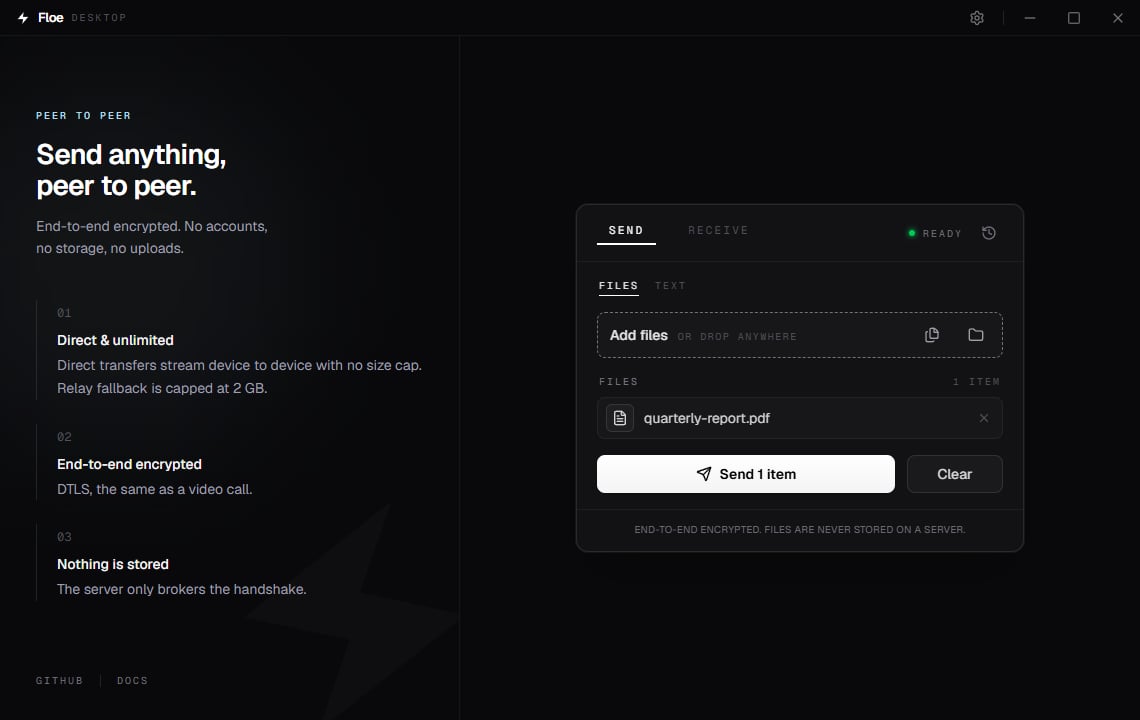
Open Floe and stay on the **Send** tab. Add what you want to send, click **Send**, then share
the code or link with the person receiving.
## Add files
There are four ways to stage files, and you can mix them:
| How | What happens |
| ------------- | ------------------------------------------------------------------------- |
| **Files** | Opens the Windows file picker. Select as many files as you like. |
| **Folder** | Opens the folder picker. The whole folder is sent as a folder. |
| Drag and drop | Drop files or folders anywhere on the window, not just on the drop zone. |
| `Ctrl` `V` | Pastes files you copied in File Explorer, or an image from the clipboard. |
Everything you add appears in a list under **Files**. Remove a single entry with the `X` on its
row, or empty the whole list with **Clear**, beside the Send button. Clear appears only when
that tab is holding something, and while a transfer is sending its place belongs to **Cancel**,
so on an empty tab or mid-send there is no Clear to find. It takes only what the tab you are on
is holding (the file list on **Files**, the box on **Text**) and leaves your settings, the
Receive tab, your history and the files themselves alone. It does not ask first.
It offers **Undo** instead, in a bar at the bottom of the window, which puts back exactly what you
had staged, whitespace and all.
The bar shows for about ten seconds, longer while you point at it or reach it with the keyboard.
The offer behind it lasts longer than the bar does, and `Ctrl` `Z` takes it once the bar has gone.
It stands until you put something new on that same tab, clear something else, or start over.
Looking somewhere else does not spend it: switch tabs, open Settings, check History, send from
the other tab or cancel a transfer, and the bar simply steps out of the way, then comes back when
you return. `Ctrl` `Z` works only on the Send tab it came from, and is ignored while the cursor is
in a text box, so click out of the box first.
Floe holds one undo at a time. Clearing on one tab while an offer from the other is still
standing replaces it, so if you cleared a note, undo it before you clear a file list.
`Ctrl` `R` starts over, which clears the selection along with everything else on the card.
It asks first if a transfer is already moving bytes, if the text box holds a note that has not
been sent (the dialog reads "The text you typed has not been sent yet. Starting over will clear
it."), or if you cleared a note that had never been sent and its Undo is still standing, since
starting over discards it. Clicking the Floe lockup in the titlebar starts over too, with the
same confirmations, but only the shortcut is held back while you are typing.
Adding the same path twice does nothing, so dragging a file you already staged is safe. One
edge worth knowing: if you add a folder **and** a file that lives inside it, that file is sent
twice, because the folder is walked separately.
### Paste to send
`Ctrl` `V` handles two different clipboard contents:
* **Files copied in File Explorer** are staged by path, so nothing is duplicated on disk no
matter how large they are.
* **An image**, such as a screenshot from `Win` `Shift` `S`, is written to a temporary file
named `pasted-image--
 ## Add files
There are four ways to stage files, and you can mix them:
| How | What happens |
| ------------- | ------------------------------------------------------------------------- |
| **Files** | Opens the Windows file picker. Select as many files as you like. |
| **Folder** | Opens the folder picker. The whole folder is sent as a folder. |
| Drag and drop | Drop files or folders anywhere on the window, not just on the drop zone. |
| `Ctrl` `V` | Pastes files you copied in File Explorer, or an image from the clipboard. |
Everything you add appears in a list under **Files**. Remove a single entry with the `X` on its
row, or empty the whole list with **Clear**, beside the Send button. Clear appears only when
that tab is holding something, and while a transfer is sending its place belongs to **Cancel**,
so on an empty tab or mid-send there is no Clear to find. It takes only what the tab you are on
is holding (the file list on **Files**, the box on **Text**) and leaves your settings, the
Receive tab, your history and the files themselves alone. It does not ask first.
It offers **Undo** instead, in a bar at the bottom of the window, which puts back exactly what you
had staged, whitespace and all.
The bar shows for about ten seconds, longer while you point at it or reach it with the keyboard.
The offer behind it lasts longer than the bar does, and `Ctrl` `Z` takes it once the bar has gone.
It stands until you put something new on that same tab, clear something else, or start over.
Looking somewhere else does not spend it: switch tabs, open Settings, check History, send from
the other tab or cancel a transfer, and the bar simply steps out of the way, then comes back when
you return. `Ctrl` `Z` works only on the Send tab it came from, and is ignored while the cursor is
in a text box, so click out of the box first.
## Add files
There are four ways to stage files, and you can mix them:
| How | What happens |
| ------------- | ------------------------------------------------------------------------- |
| **Files** | Opens the Windows file picker. Select as many files as you like. |
| **Folder** | Opens the folder picker. The whole folder is sent as a folder. |
| Drag and drop | Drop files or folders anywhere on the window, not just on the drop zone. |
| `Ctrl` `V` | Pastes files you copied in File Explorer, or an image from the clipboard. |
Everything you add appears in a list under **Files**. Remove a single entry with the `X` on its
row, or empty the whole list with **Clear**, beside the Send button. Clear appears only when
that tab is holding something, and while a transfer is sending its place belongs to **Cancel**,
so on an empty tab or mid-send there is no Clear to find. It takes only what the tab you are on
is holding (the file list on **Files**, the box on **Text**) and leaves your settings, the
Receive tab, your history and the files themselves alone. It does not ask first.
It offers **Undo** instead, in a bar at the bottom of the window, which puts back exactly what you
had staged, whitespace and all.
The bar shows for about ten seconds, longer while you point at it or reach it with the keyboard.
The offer behind it lasts longer than the bar does, and `Ctrl` `Z` takes it once the bar has gone.
It stands until you put something new on that same tab, clear something else, or start over.
Looking somewhere else does not spend it: switch tabs, open Settings, check History, send from
the other tab or cancel a transfer, and the bar simply steps out of the way, then comes back when
you return. `Ctrl` `Z` works only on the Send tab it came from, and is ignored while the cursor is
in a text box, so click out of the box first.