

Ctrl ,. Press Esc to go back.
Changes save as you make them.
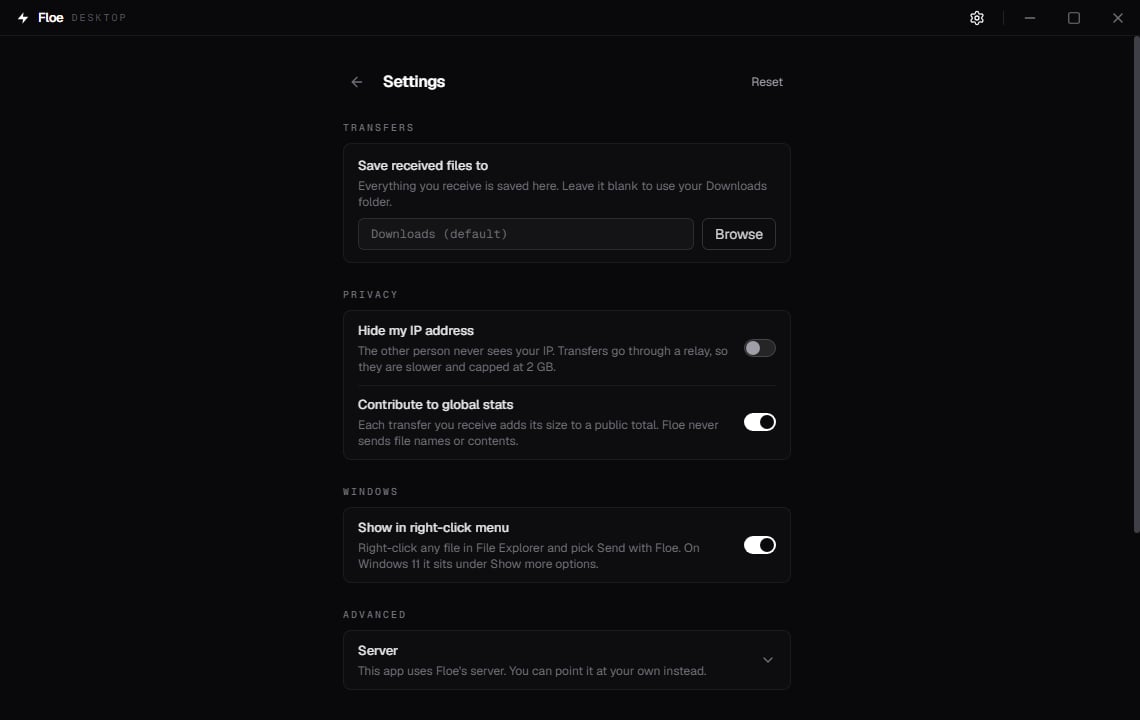
Settings in the build from GitHub. The Microsoft Store build shows the same screen without the Windows section and the Check for updates switch.
Transfers
Save received files to
Where everything you receive is written. Leave it blank and Floe uses your Downloads folder, or your home folder if you do not have one. It never asks per transfer. An arriving file never replaces one you already have. See Nothing is ever overwritten.Privacy
Hide my IP address
Off by default. A normal Floe transfer connects the two devices directly, which is why it is fast and unmetered. Connecting directly means each side learns the other’s IP address, in the same way a video call does. Turn this on and Floe stops trying for a direct path. Everything goes through the TURN relay instead, so the other person only ever sees the relay’s address. Two consequences follow, and both are unavoidable rather than bugs:- Transfers are slower, because every byte takes a detour through the relay.
- Transfers are capped at 2 GB per session, because relay bandwidth costs real money. A larger transfer is refused before any data moves, not partway through. See File size limits.
--relay-only on floe send or floe receive, and FLOE_RELAY_ONLY=1 keeps it on.
See the CLI flags reference.
Contribute to global stats
On by default. Floe’s homepage shows a public, all-time total of bytes transferred by everyone. When a transfer finishes, the receiving side reports the byte count and nothing else. No file names, no contents, no record of who sent what, and no link to you. The sender never reports, so this setting only matters for transfers you receive. Turn it off and no request is made at all. The same opt-out exists on every surface. Here it is this switch, saved with your other settings indesktop.json; there is no environment variable for it, and FLOE_NO_STATS belongs to the
CLI. In the browser it is a checkbox on the receiver view, and for the CLI it is --no-report or
FLOE_NO_STATS=1. See
Security and privacy.
The report follows whichever server the app is set to, so pointing Floe at your own instance
sends your byte counts to that server’s counter rather than to floe.one.
Check for updates
On by default, in the build from GitHub. Once a day, the app asks GitHub whether a newer desktop release exists, and shows a small dismissible notice when one does. The request carries nothing about you beyond what any web request reveals (your IP address and a user agent); nothing about your files or transfers is in it. Nothing downloads or installs by itself. See Update. Turn it off and no request is made at all. SettingFLOE_NO_UPDATE_CHECK=1 in your environment
does the same, matching the CLI’s update check.
The Microsoft Store build never checks and does not show this switch: the Store updates the app
itself. Builds you compile yourself never check either.
Windows
This section is only shown in the build from GitHub. The Microsoft Store build hides it, because a packaged app cannot register the entry in a way File Explorer would read. See Installation.Show in right-click menu
On by default. Floe registers the entry the first time it runs, and remembers if you switch it off, so it does not come back on its own. It adds Send with Floe to the File Explorer right-click menu. On Windows 11 it sits under Show more options. The entry is written to your own user’s part of the registry. It needs no administrator approval, changes nothing for anyone else using the machine, and turning it off (or uninstalling Floe) removes it again. Two details worth knowing:- The entry applies to files, not folders. To send a folder, use Folder in the app.
- It stores the path to the Floe that registered it. If you move the app, Floe repairs the entry the next time it starts. Uninstalling removes the entry outright, so after a reinstall check the switch is still on.
Advanced
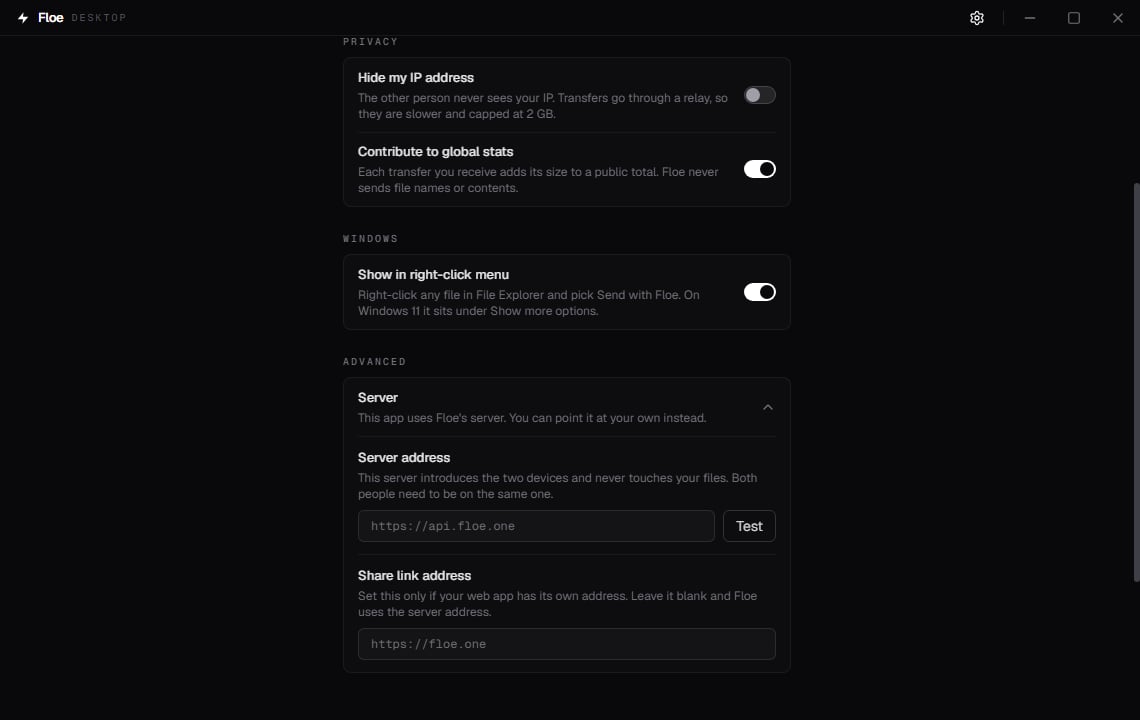
Advanced, expanded
Server
Floe usesapi.floe.one unless you tell it otherwise. That server introduces the two devices
and hands out relay credentials. It never receives your files.
To use your own instance, put its address in Server address. Leave the field blank to go
back to Floe’s server, or use the Use default server button that appears once a custom
address is set.
Both people must be on the same server. Servers do not talk to each other. Once you point
Floe at your own instance, you can no longer transfer with someone on floe.one, and they
cannot reach you. That is the point of self-hosting, but it does surprise people.
Being on the same server is not enough on its own to reach you: whoever wants to receive still
needs the room code or link, which only exists while you are sharing.
Click Test to check an address before relying on it. The check runs three stages, because
each one catches a failure the others cannot:
The third stage matters more than it looks. A reverse proxy that forwards the first two but
drops
/api/ produces no visible error at all: relay credentials silently fall back to public
STUN, and the room code quietly fails to register, so you get a share link with no code and no
explanation.
While the check runs, the line reads Checking the server.... The two HTTP stages get six
seconds each, and the realtime stage is bounded by the WebSocket handshake timeout instead, which
is longer. An address that swallows connections rather than refusing them can take the better part
of a minute to come back. That is slow, not stuck.
A pass starts with Connected. and carries no prefix. Every failure does, so the row below
reading That does not look like an address. Include https:// and the host name. reaches the
screen with Error: in front of it.
A pass also reports whether the server offers a relay. A server without one still passes,
because it works for any transfer that finds a direct path, and the message names the
limitation rather than reading as a failure. Hide my IP cannot work at
all without a relay, and ordinary transfers fall back to it whenever the two devices cannot
reach each other directly.
See Run behind one domain for a proxy configuration that
forwards all three.
Share link address
Leave this blank unless your web app is on a different address from your signaling server. The recommended way to self-host is one address serving both, in which case Floe works out the share link from the server address and this field stays empty. Only a split setup, where the API is onapi.example.com and the web app on app.example.com, needs it. Without it the
share link would point at the API, which serves no web app, and the link would be dead.
This mirrors the CLI’s --web flag. See
Use a self-hosted server.
About
App version
The release you are running, for exampledesktop-v0.2.12. A build you compiled yourself reads
dev.
When the daily check has found a newer release, an Update row appears under it with a
Get update button that opens the download page. The row
stays as long as the app is behind, even after the notice popup is dismissed, and disappears
once you are up to date.
Transfer protocol
The version of the wire format the app speaks. You do not need to match versions with the person on the other end. Compatibility is a range check, not an exact match, so different releases transfer normally. If a future release ever does change the format in a way the two sides cannot bridge, they detect it before any file data moves and say which side should update, rather than failing halfway or writing a corrupt file.Server in use
Which signaling server the app is using. On screen the row is labeled simply Server, and it is always visible even with Advanced collapsed, so a custom server can never hide behind a closed section. A Share links row joins it if you set a separate share link address. Copy puts the version, the protocol version, and the server on the clipboard. Those are the details to include in a bug report.Reset
Reset at the top of Settings restores the save folder, the privacy switches, and both server addresses to the way Floe shipped. It asks first, and tells you what it is about to forget. It deliberately leaves alone:- Your transfer history, and the files you have already received.
- The File Explorer right-click entry, because that lives in Windows rather than in Floe. Reset would have to either leave it dangling or silently rewrite the registry, and neither is something a Reset button should do. Turn it off in Windows instead.
Where settings are stored
Settings live in a plain JSON file at%APPDATA%\floe\desktop.json. Floe writes it on the first
launch, before you have touched anything, because that is when it imports the older privacy
switches and stamps migrated. It is rewritten every time the Settings screen closes, changed or
not. A fresh install looks like this:
desktop.json
migrated set to true:
without it Floe treats the older privacy switches as never having been set and re-imports them
from its older storage, discarding whatever you wrote.
Both the Microsoft Store build and the GitHub build use this same file, and the floe CLI keeps
its own files in that same floe folder, so the two coexist. The file survives an uninstall on
purpose, so reinstalling picks up where you left off.
Your save folder and transfer history are not in this file. They live in the interface’s own
storage under %APPDATA%\floe\webview, as the keys floe:saveDir and floe:history. That folder
survives an uninstall too, which is why a reinstall still knows where you save files and what you
have already sent.