

Add your files
Drop files onto the dashed area inside the card, or click it to open the file picker. You can add one file or many, of any type.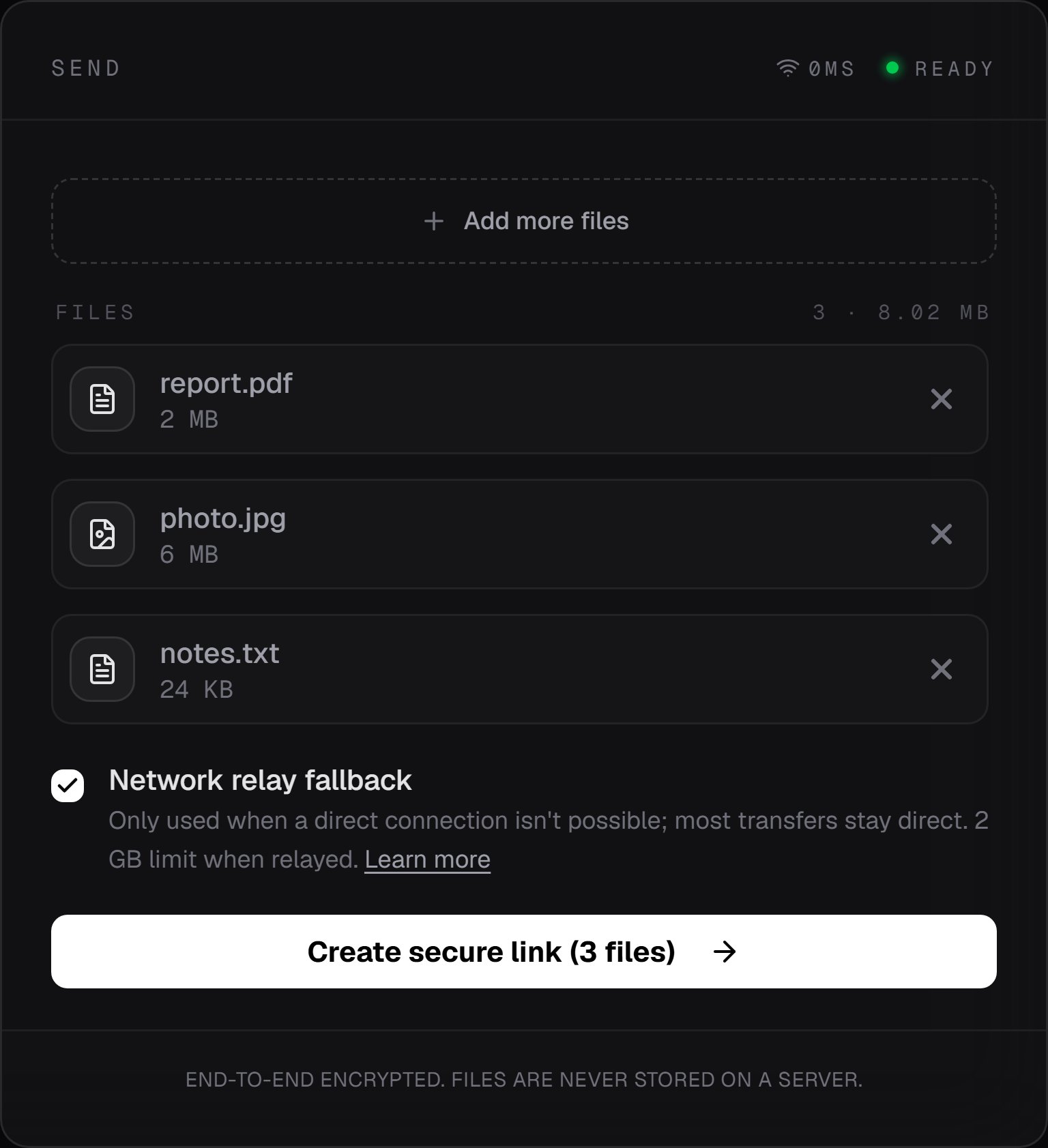
Three files staged, with the relay checkbox and the send button below them
Decide whether the relay is allowed
Once at least one file is queued, a Network relay fallback checkbox appears above the send button. Leave it on unless you have a specific reason not to.
Unchecking it shows an amber warning: “Relay fallback is disabled. Transfers may fail if either
device is on mobile data or a restricted network and a direct connection cannot be established.”
Turn it off only when you need certainty that files never pass through a relay, for compliance
reasons for example. You do not need to turn it off to send more than 2 GB: the cap applies only
when the connection actually ends up relayed, so leaving fallback on costs a direct transfer
nothing.
The checkbox disappears when you create the link, so set it before you click. The choice applies
to this page only. It is not saved, so it is back on after a reload.
Create the link
Click Create secure link. The button carries the count, so it reads “Create secure link (3 files)”.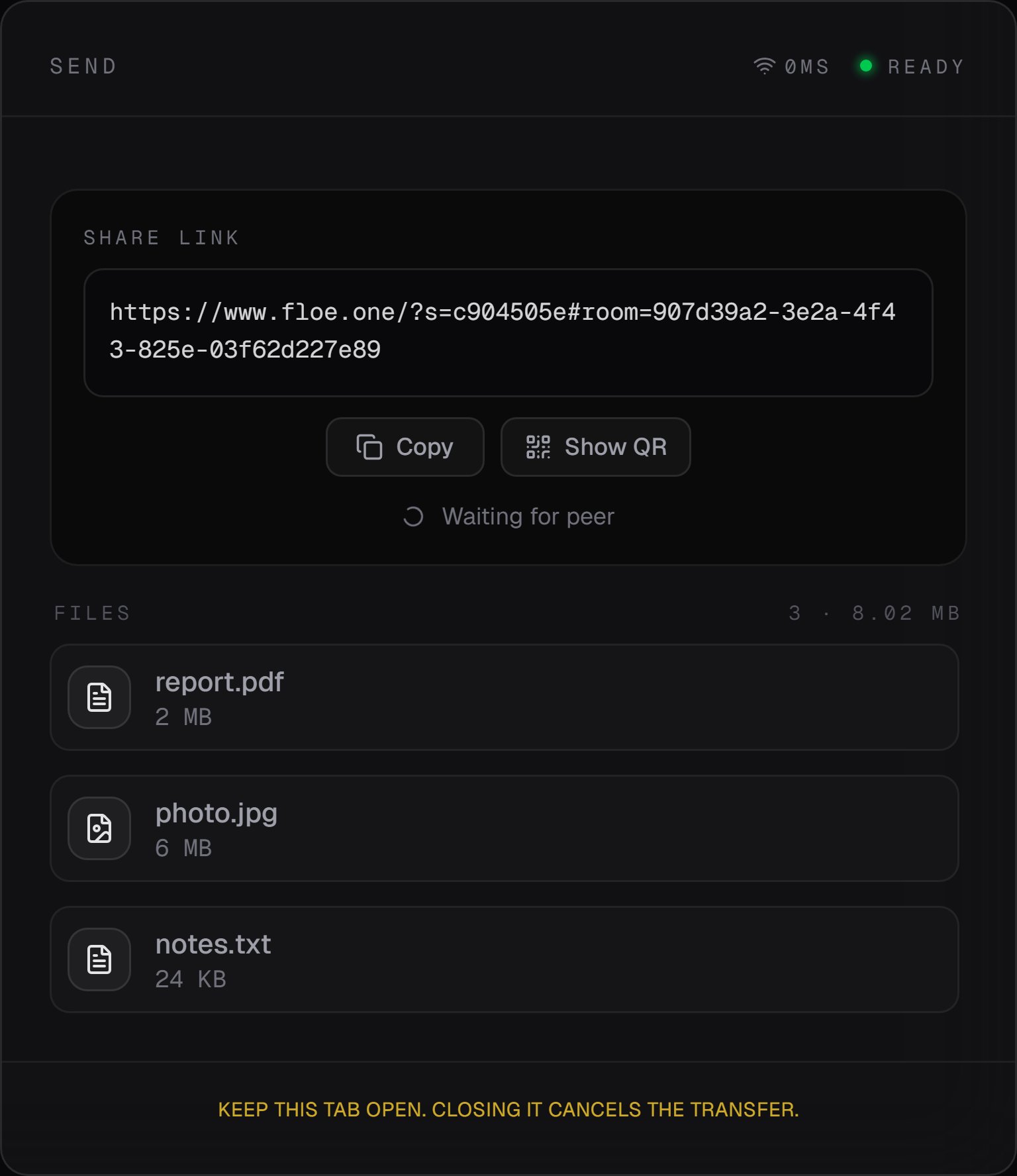
The share panel, waiting for the other person to open the link
- Copy puts the link on your clipboard.
- Show QR reveals a QR code. Point a phone camera at it to open the link there. Hide QR collapses it again.
- Share opens your device’s own share sheet. It appears only on browsers that have one, which in practice means mobile.
https://www.floe.one/?s=8262e1b4#room=<uuid>. The room id sits after the
#, which browsers never send to a server, so the part that actually guards your transfer stays
on your two devices. The ?s= value is eight random hex characters that carry no information;
they exist only so each link is a distinct page, which stops a phone that already has Floe open
from reusing a stale tab.
One link, one recipient at a time. The room holds exactly two people, so while someone is
connected, anyone else opening the same link gets a “Link Invalid” card. Opening a link does not
use it up: if that person drops off, the seat frees and the link works again. Create a fresh link
for each person.
Watch the connection
The top of the card shows a dot, a label, and, on the sending side only, a live ping.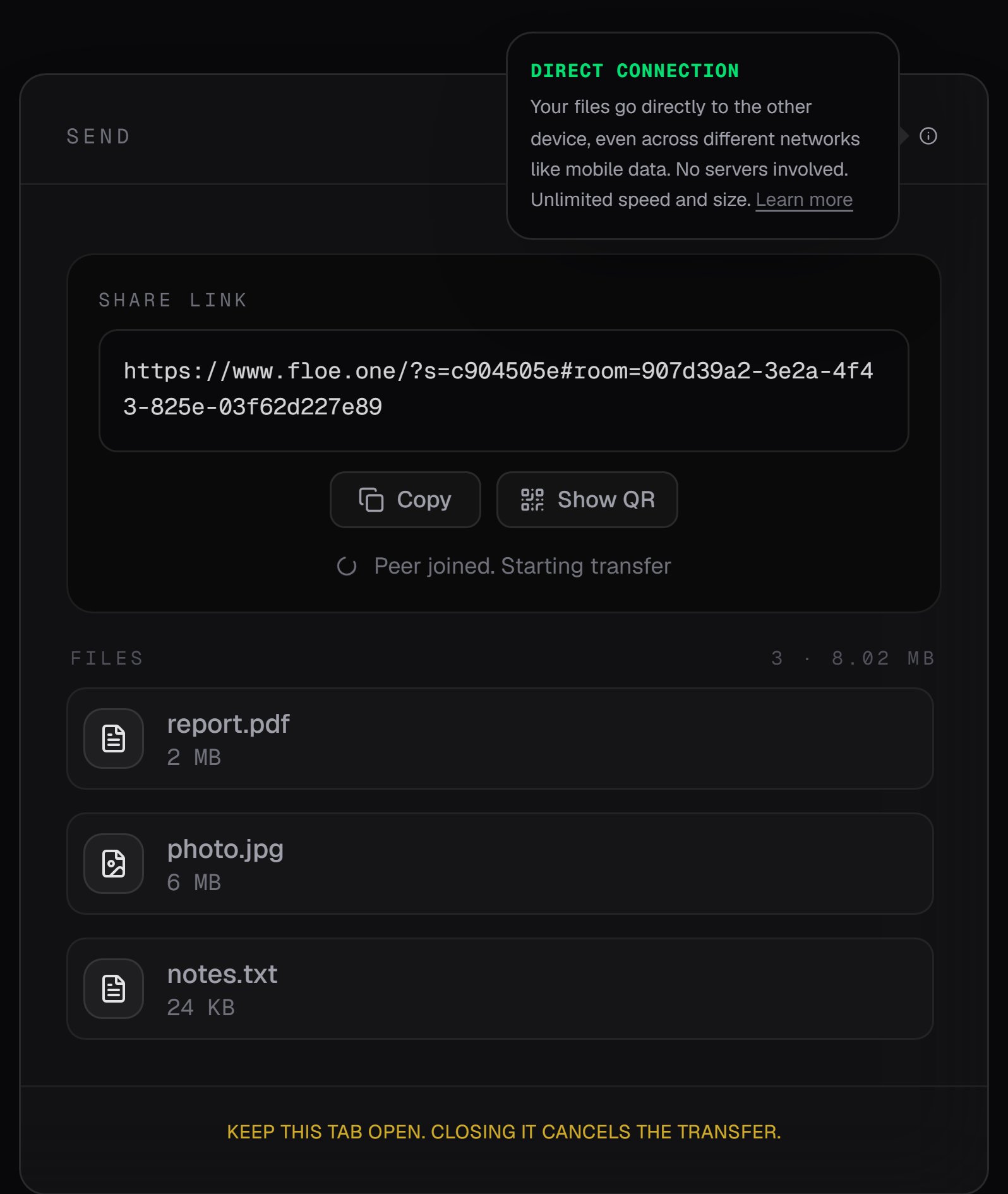
The badge after the route resolved, with the explanation Floe shows when you tap the info icon
The dot tracks your link to the signaling server until the route resolves, so a green
Ready does not mean anyone has joined. The status line under the share link is what tells you
that: it reads “Waiting for peer”, then “Peer joined. Starting transfer”.
Hover or tap the info icon beside Direct or Relay for the short explanation shown above.
The other two labels have no icon.
While it transfers
The transfer begins on its own, about two seconds after the two devices actually connect. On a fast network that is a moment after they open the link; on a slow or relayed one the connection itself takes longer, and the two seconds start after it. There is nothing to click. Floe checks the route before sending a single byte, so two things can stop it there:- You turned relay fallback off and the only path is relayed. The card reads
Connection failed. Enable "Network Relay" to connect across restrictive networks.and the connection is closed. - The route is relayed and your files total more than 2 GB. The status line reads
Transfer blocked. Relay limit exceeded., an amber banner explains the cap, and the connection is closed. Nothing is sent. Because the file list is locked once the link exists, the way out is to reload the page and start again with fewer files, or from a network that allows a direct connection.
Transfer timed out waiting for receiver. Please try again.
Keep the tab open and in the foreground. Closing it or navigating away ends the session
immediately and the recipient loses the connection. On mobile, a backgrounded tab may be
throttled, which slows the transfer down.
Short codes are not a browser feature
floe send and Floe Desktop both register a three-word code, and both floe receive and the
desktop Receive tab accept one. The web app does neither: it never mints a code, and it has
no field to type one into. A browser recipient always needs the full link or the QR code.
If you want a code, send from the terminal or from
Floe Desktop instead.