

Someone sent you a request link? This page is for the person who makes one. To send through a link, see
Sending through a request link.
floe CLI.
The short version
1
Open Receive and choose Request link
In Floe Desktop, Request link sits next to Code under Receive.
2
Click Make link
The form works as it is: files go to
Downloads\Floe, and the link ends in 24 hours. A label, another
folder and another end time are optional.3
Send the link to one person
Click Copy link and send them the whole link through a channel you trust. They open it in their
browser, pick files, and click Send. Their page is supported in current Chrome and Edge on a computer: see Sending through a request link.
4
Click Accept
Floe shows how many files they want to send, the total size, and the folder the files will go into.
Accept only if you expect them.
5
Open the folder
When the card reads RECEIVED, click Show in folder. The link is now used up.
What a request link is
- One person, one drop. A drop is one sending through the link. While one person is connected, nobody else can use the link, and after a drop finishes or stops the link is used up.
- A live transfer, not a mailbox. Files move only while Floe is open on your PC and the PC is awake and online. Nothing is stored on a Floe server, so nothing waits there for you to collect later.
- No names attached. Floe has no accounts, so a link carries no name. The sender’s page says “Floe does not know who that is”, and it cannot tell you who is sending either.
- One at a time. You can have one request link open. Close it to make another.
Where to find it
In Floe Desktop, open Receive. Request link sits next to Code. There is no switch to turn on, and Floe asks the server nothing about request links until you click Make link. Request links need a server that offers them. Floe’s own server does unless they have been turned off there. When the server does not offer them, Make link says so under the button: “Request links are off on this server”. If Floe cannot reach the server at all, it says “Couldn’t make a link”. For your own server, see Turn on request links.Make a link
Go to Receive and choose Request link. The form has three fields and a check:
In Save to, a relative path such as
Pictures\Drops is read from your home folder, so that one is the
Drops folder in your Pictures folder. Variables such as %USERPROFILE% and a leading ~ work, and the
quotes that File Explorer’s Copy as path adds are dropped. The folder does not have to exist yet. A
Save to of only quotes or spaces means the default folder.
Floe checks the folder when you click Make link, before it asks the server anything. It says “Couldn’t
use that folder” under the button, and makes no link, when:
- the folder’s drive is not there, or its network share is offline
- part of the path is a file
- a folder name has a character Windows does not allow:
<,>,:,",|,?or* - a folder name ends in a space, or in a period that follows a space or another period
- the path has no drive, such as
\Floe, or is relative to a drive, such asD:Floe - Floe cannot write there, such as in Program Files or on a read-only share
Who sees your IP address
The sender’s browser and your PC connect to each other directly, and a direct connection shows each side the other’s IP address, the number that locates a connection on the internet. That happens as soon as the sender clicks Send, which is before your Floe asks you to accept or decline, so declining does not hide your address. Turn on Hide my IP address in Settings (Hide my IP) and Floe sends every drop through a relay instead, a TURN server that passes the encrypted data along. The sender then sees the relay’s address and not yours. A relayed drop is capped at 2 GB. Floe reads the setting when a sender connects, so a change applies to the next sender. The sender’s page has its own Hide my IP check, which hides the sender’s address from you at the same cost. See Hide my IP address and What each side can see. Hide my IP needs a relay at the moment a sender connects. When the server has none, or Floe cannot read its relay list then, that sender cannot connect. The link waits again and reads “The sender couldn’t connect: Hide my IP is on and no relay is available”.Auto-accept
Check Auto-accept under Link ends before you click Make link, and drops through that one link save without the Accept step. It is off on every new link, and Floe never remembers it. Its info button warns “Only turn this on if you trust everyone with the link”, then says “Files save without asking, except in a few cases, like low space or a USB drive”. Anyone with the whole link can use it, a link can be forwarded, and the person sending cannot tell that the link accepts by itself. While such a link waits, its line reads “Ends today, 2:05 PM · Accepts automatically” and the status at the top reads AUTO-ACCEPT. A drop that qualifies starts at once. With notifications on, Windows shows “Receiving files through your request link”, with no taskbar flash and no(1) Floe title (see
Notifications for when Windows shows one). The card shows the drop
arriving, Cancel drop stops it as usual, and History marks it “Accepted automatically”. If two automatic
Accepts on one link find the sender already gone within 10 minutes, Floe stops showing that notification for
the link.
Some drops still ask, with Accept and Decline as usual:
- A drop the request would warn about: too little free space, or over 2 GB through the relay.
- A drop whose route Floe could not read.
- A drop to a drive that cannot carry Windows’ downloaded-file mark, the tag that makes Windows warn before you open a downloaded file. Most USB sticks and SD cards (FAT32 and exFAT drives) and many network shares cannot. A drop to a drive that does not answer that question within 2 seconds asks too.
- A drop that would leave less than 20 GB, or less than a tenth of the drive, free, and a drop to a drive whose free space or size Floe could not read.
Floe also reads the drive when you make the link and every 10 minutes while it waits. When the drive already
has less free space than an automatic drop must leave, every drop would ask. The line under the link then
reads “Ends today, 2:05 PM · Asks first, low space on C:” instead. On a drive that cannot carry the
downloaded-file mark, every drop asks too, and the line reads “Ends today, 2:05 PM · Asks first, Windows
can’t mark files on E:”.
Everything else about a drop stays the same: one drop per link, at most 10,000 files, 2 GB kept free after
each file, renamed shortcut-type files, and who sees your IP address.
Share the link
Floe shows the link with Copy link and Close link, and a line such as “Ends today, 2:05 PM”. A later day reads like “Ends Oct 9, 2:05 PM”, and a link made with Auto-accept adds “· Accepts automatically”. A request link looks likehttps://floe.one/r/<link id>#<key>.
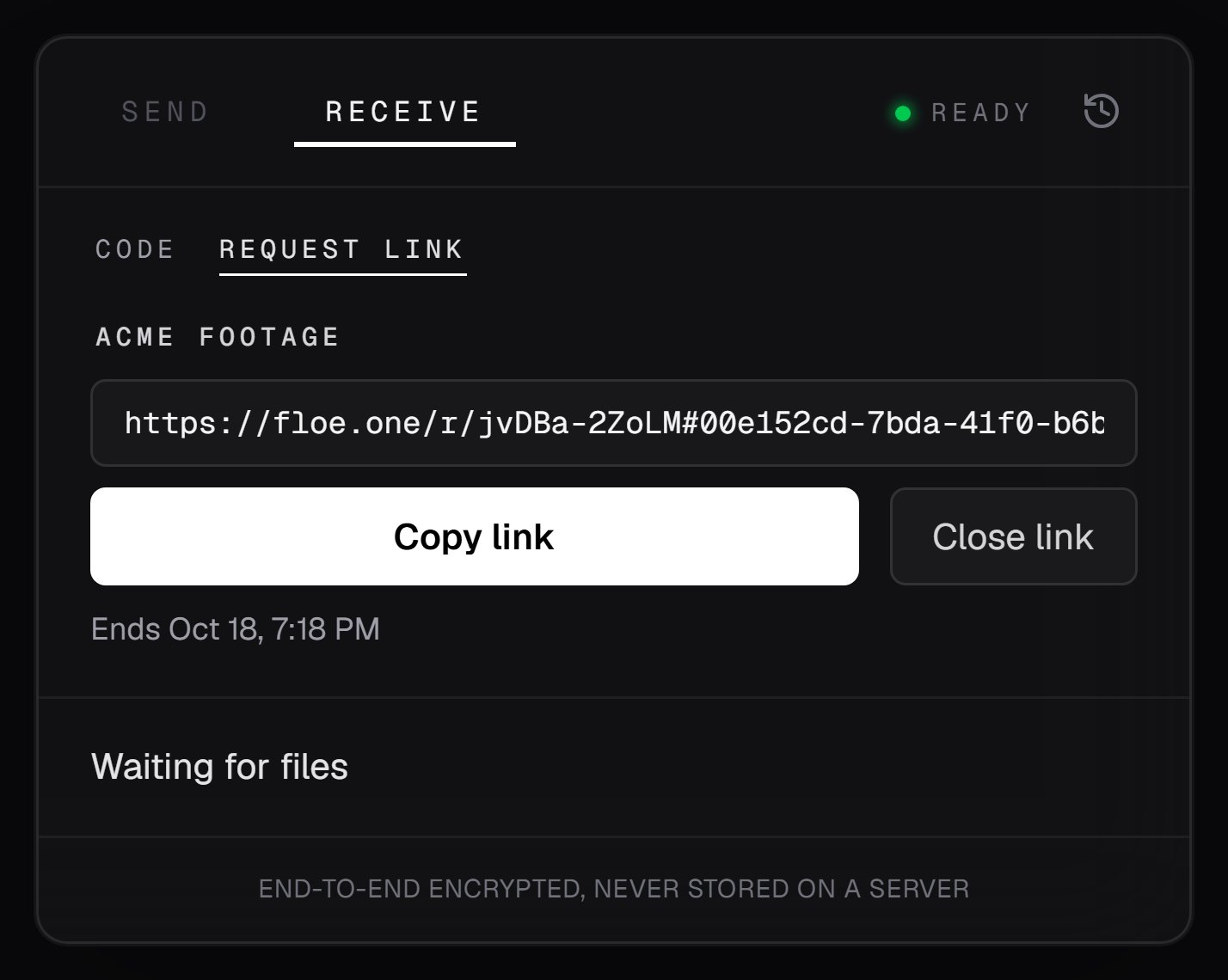
An open link, waiting for files
# is the key that connects their browser to your PC. Browsers do not send it when they
load a page, so the web server behind floe.one never sees it. The sender’s page uses it only when they click
Send, to reach your PC through Floe’s signaling server.
While the link waits, Floe reads “Waiting for files”. Floe cannot tell when the link is opened, so a chat
app’s preview of it changes nothing. Floe hears from the sender only when they click Send.
The preview gives nothing away. In a chat or mail app, every request link shows the same one: “Floe request
link” with “Send files peer to peer. Nothing is stored on a Floe server.”. Every link also
has the same tab title, “Send files - Floe”. Neither ever holds the link id or the key, and search engines are
told not to list the page.
Close link ends the link at any time before a drop is accepted. Once files are arriving, Cancel drop
takes its place.
The status at the top
The status at the top right reads READY while a link waits, the same as when no link is open, or AUTO-ACCEPT while a link made with Auto-accept waits. Open Receive > Request link to see your link. The dot beside it is green, or amber when Hide my IP is on, because then whoever uses the link next is relayed. While files arrive it reads ACTIVE until the route is known, then DIRECT or RELAY, like any transfer. See Sending files for every word the status can show.A request link pasted into Receive
A request link is for sending, so it does not work in the Code or link field. Floe says “Request links open in a web browser” and offers Open in browser, also for a link pasted withouthttps:// or inside
quotes or angle brackets. The floe CLI refuses it too, in its own words:
“That is a request link for sending files to someone. Open it in a web browser.”
What the sender does
The person you sent the link to opens it in a browser, picks files, and clicks Send. Their side, with every message their page can show, is in Sending through a request link. Thefloe CLI can send through the link too: see
Send through a request link.
Accept or decline
When the sender clicks Send, Floe reads “Connecting to the sender…”, connects to their computer, and then shows the request under Receive > Request link. On a link made with Auto-accept, only a drop that still asks shows one (see Auto-accept).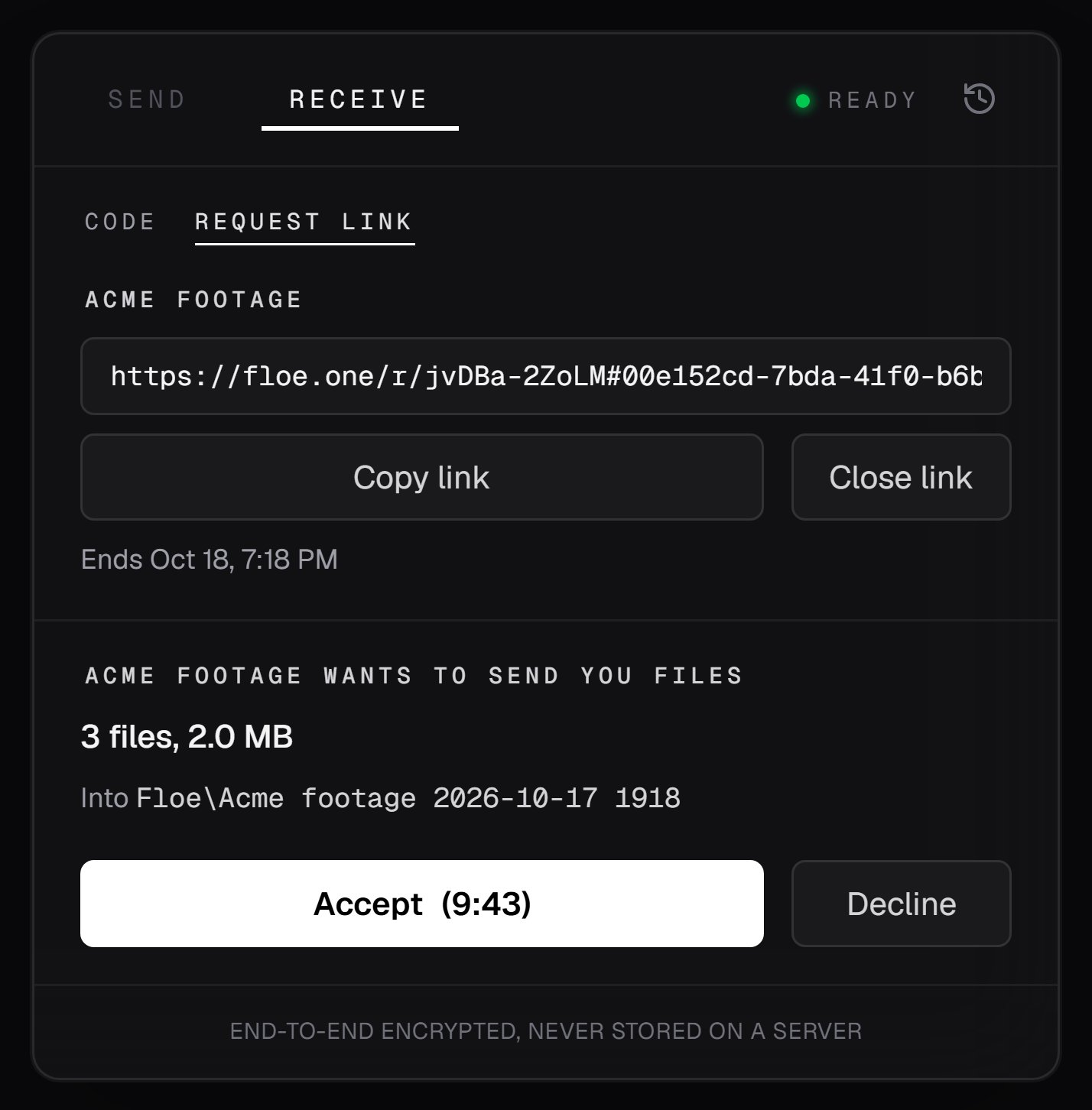
A request, with the time left to answer on the Accept button
- The taskbar button flashes until Floe comes to the front.
- The window title reads
(1) Floe. - Everywhere else in Floe, a notice reads “Someone wants to send you files” with Review, which opens the request.
- With notifications on, Windows shows “Someone wants to send you files”.
It never shows a file name or any other text the sender chose. Names appear only as files arrive, with
hidden characters replaced. Floe holds the sender to the count and size you accepted: more data stops the
drop.
The request also warns you, in amber, when something would stop the drop: too little free space, or more than
2 GB through the relay. Both lines are under Messages. On a link made with
Auto-accept, a drop that asks for another reason says why in a gray line (see Auto-accept). A
laptop needs one more precaution: see On a laptop.
Accept and Decline wake up 1 second after the request appears, and again 1 second after the Floe
window comes to the front, so a click meant for something else cannot answer it.
You have 9 minutes 45 seconds to answer, and Accept counts it down. After that the request ends on its
own and the sender’s page says they did not answer in time. A missed request does not close the link: it
waits again and reads, for example, “Missed a request at 2:14 PM”, or “Missed a request at Oct 15, 3:42 PM”
when it was not today.
If the sender’s connection fails while the request is showing, because their browser closed or crashed or
their network went away, the request ends on its own. That takes about 30 seconds, and then the link waits
again. A drop
whose sender’s connection fails stops the same way, and the files already saved stay.
After Decline, nothing is saved: Floe shows “Request declined” and asks “Keep waiting for the right
sender?”. Keep waiting opens the link again; Close link ends it. Until you choose, the link takes no
new request, and a sender who tries sees “This link has already been used”. If request links have been
turned off on the server in the meantime, Keep waiting ends the link with “Request links are off on this
server”.
A request ends without an Accept when you decline it, when it runs out of time, or when the sender leaves
while it shows. When two do so on one link within 10 minutes, Floe stops showing Windows notifications for
that link’s next requests and asks “2 requests ended without Accept in 10 minutes. Close this link?”. The
flash, the title and the notice stay. Notifications come back once fewer than two such ends fall in the last
10 minutes, or as soon as you accept a request.
Where files go
Each drop gets its own new folder inside your Save to folder, created only when the drop is accepted, by you or by Auto-accept. It is named from your label and this PC’s clock, such asAcme footage 2026-09-14 1405, or Request 2026-09-14 1405 with no label. The time is on a 24-hour clock,
so the folders sort by date. A character Windows does not allow in a folder name becomes _ there. On
Windows 10, a label that begins with a reserved device name and a dot, such as con.notes, also gets an _
in front. If the
name is taken, Floe adds a number, from (2) to (99), and never writes into a folder that already exists.
Make link checks the Save to folder once. If the drop’s folder cannot be made at Accept, for example
because the drive was unplugged since or all 99 names are taken, the drop stops before anything is saved. The
card reads “Windows couldn’t write to the folder · Nothing saved”, and the link is used up.
Inside it, the sender’s folders keep their structure. A file shows as name.ext.part while it arrives and
takes its real name only once it is complete and checked. Names Windows cannot use are adjusted, as for any
receive (see Receiving files).
While files arrive
The card reads, for example, RECEIVING 2 OF 12 FROM ACME FOOTAGE, and shows which file is arriving, how much has arrived, the speed, and the time left. Cancel drop stops it, and reads Stopping until the drop has stopped, which can take a few seconds. You can minimize the window. From the moment the drop is accepted until it ends, Floe asks Windows to keep the PC awake; the screen can still turn off. It does not keep the PC awake while a link only waits. There is no resume. If the connection drops, the drop stops: files already saved stay, the file that was moving is discarded, and the sender can send the rest with a new link. A single drop stops at 24 hours. After the first minute, Floe warns about a long drop under the progress:
For a drop that will take hours, keep the PC plugged in and awake. Set Windows Update’s active hours to cover
it too, because Windows may restart for updates outside your active hours.
On a laptop
Keep a laptop plugged in with its lid open while files arrive. Floe’s request to keep the PC awake does not override a closed lid or a manual sleep, and a laptop on battery can stop Floe a few minutes after its screen turns off. The drop then stops, the files already saved stay, and the file that was moving has to be sent again through a new link. On a PC with a battery, the card reminds you with “Keep this laptop plugged in and open” under the progress. It appears once the drop has run for 1 minute with more than 5 minutes left, and stays until that drop ends, so a short drop never shows it. A PC without a battery never shows it.When it finishes
The card reads, for example, RECEIVED 12 FILES, 38.0 GB, followed by a green check mark when every file was checked (see The check mark). With notifications on, Windows shows “Files received”. Under the heading the card lists every file that arrived, each with its size, in a box that scrolls after about five rows. It keeps 200 names, and a line such as “+ 3 more” counts any beyond them. The drop’s folder and Show in folder sit at the bottom of the box. Make another link puts the result away and takes you back to the form for a new link. The link you used is used up.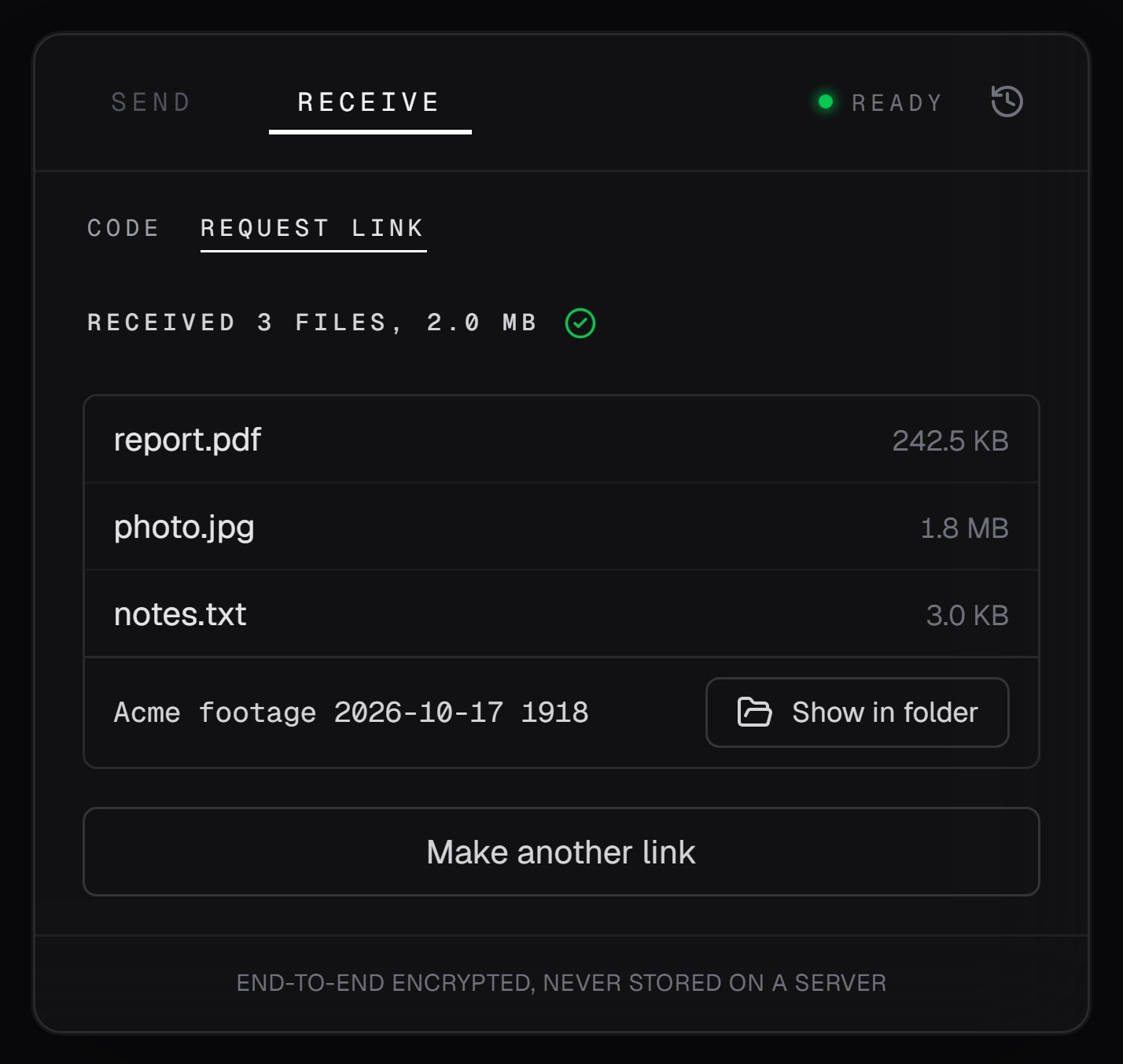
A finished drop
The check mark
A green check mark after the heading means every file in the drop matched the fingerprint the sender worked out, its SHA-256. With no check mark the files are still saved: at least one arrived without a SHA-256 to compare. A file that does not match is never kept, and File checks explains what the check proves and when the mark is missing.Renamed files
Some Windows file types are read by File Explorer as soon as it shows the folder they are in, before you click anything. A few of them can make Windows contact a server the sender chose and hand it a scrambled copy of your Windows sign-in, which someone could try to crack or reuse. A drop saves these with.floe-blocked
added to the name, so File Explorer leaves them alone:
So a shortcut called
Report.lnk arrives as Report.lnk.floe-blocked. A folder or file name that ends in a
class ID loses that ending. A class ID is a code in curly braces, such as
.{00000000-0000-0000-0000-000000000000}, that makes File Explorer open something other than the folder.
The finished card says how many files were renamed, for example “1 file now ends in .floe-blocked so Windows
won’t open it on its own”. For more, it reads like “3 files now end in .floe-blocked so Windows won’t open
them on their own”.
Show in folder then asks first: “This drop has renamed files” and “Open the folder anyway?”, with
Cancel, which has focus, and Show in folder. File Explorer leaves the renamed files alone when the
folder opens.
What to do with a renamed file:
- If you did not expect it, delete it. Nobody needs to send you a shortcut or a theme file you did not ask
for. In File Explorer, select it and press
Delete. - If you expected it and trust the sender, rename it back. Select it in File Explorer, press
F2, delete.floe-blockedfrom the end of the name, and pressEnter. Windows may ask whether you are sure you want to change the file name extension: click Yes. From then on it behaves like any file of its type.
Floe does not scan files
Floe does not scan received files for malware. It marks each file as downloaded, the way a browser does, so Windows treats it like any download. Some drives cannot keep that mark: see Received files are marked as downloads. The finished card shows “Floe doesn’t scan files for malware” only when your save drive cannot keep the mark, or did not tell Floe within 2 seconds whether it can. On those drives Windows has nothing to warn you with when you open a file, so the line takes the place of that warning. The check mark means the files arrived intact. It does not mean they are safe.If a drop stops
The card reads DROP STOPPED with one sentence saying why and how many files were saved:- Files saved before the stop stay in the drop’s folder, and Show in folder opens it when a file was saved.
- A drop that saved nothing leaves no folder behind and adds no row to History, unless it kept a
.partfile as below. - The file that was arriving is deleted. The one exception is a finished file Windows would not let Floe move
into place, often because another program was holding it. Floe retries for 5 minutes, and if it still
fails, the complete file stays in the drop’s folder with a
.partending. - With notifications on, Windows shows “Floe - receive failed” with “The transfer didn’t finish”, unless you stopped the drop yourself.
The last one reads as if you had accepted something, though no request was shown: it is the same sentence as
for a sender that sends more than you accepted.
After a stop, the sender can send the rest with a new link: click Make another link and send them that.
Every stop sentence is listed under Messages.
With Contribute to global stats on, the files a drop saved before it stopped count toward Floe’s public
total, as a finished drop’s do. See Contribute to global stats.
How a link ends
When you close Floe while a link waits, the dialog reads “Your request link stops working”. While a drop is
arriving, it reads “Closing now stops the transfer before the files finish”, and Close stops the drop at
once. The files saved so far stay in its folder, and the sender needs a new link for the rest. The next time
Floe starts, the drop shows as stopped, for example “Floe was closed · 4 of 12 files saved”, with Show in
folder, and gets its row in History. The same happens when Windows ends Floe, for example to restart for
an update. With a send or
a receive by code running too, a second line reads “Your request link also stops working”.
The link is kept in memory only, so after a close it cannot come back. If you reopen Floe before the link’s
end time, Receive opens on Request link, ready for a new link.
If Floe loses its connection to the Floe server, the card reads “Can’t reach the Floe server” and
“Reconnecting…”, with Retry now. A server that goes silent, rather than closing the connection, takes
Floe up to about a minute to notice. Floe then retries, waiting between 1 and 30 seconds between attempts, and
keeps trying until the link’s end time. Retry now skips the wait. Meanwhile the sender’s page says your
computer is not connected.
A server restart does not end the link by itself: Floe makes it again when it reconnects. The server counts
that link as a new one after a restart, and also after your PC was asleep or offline for more than 10 minutes.
If your network has used its 20 links for the day, or already has 10 open, the link then ends with “This
network reached today’s link limit” or “Couldn’t make a link”.
Start over on the Send side leaves the link open. So does switching tabs or opening Settings.
History
Each drop that finishes, stops after saving a file, or stops with a complete file kept as.part adds one
row to History, titled with your label if you gave one. With no label, a drop
that saved no file is titled “Nothing saved”. A drop Floe was closed during gets its row the next time Floe
starts. Opening it shows the
check mark when every file was checked, “Accepted automatically” for a drop that Auto-accept took, and why
it stopped. It repeats no renamed-files warning (that stays on the finished card), but Show in folder
still asks first after renames. Declined and missed requests add nothing.
History words a stop in its own sentence, which can differ from the card’s:
Every other stop reads in History as “Drop stopped:” and the card’s sentence, without the count, such as
“Drop stopped: over the 2 GB relay limit”. “You stopped this drop” keeps its count in both.
What each side can see
On this page, you are the person who made the link.
When your IP address is shown, and how to hide it, is under
Who sees your IP address. Floe’s server introduces the two computers, as it does
for any transfer, and never receives the files. See Security and privacy.
Limits
A file too large for the save drive stops the drop as soon as the sender announces it. For the first file,
that is before any request appears: see If a drop stops.
A relayed drop over 2 GB does not start: the sender’s page checks first and says “Relay limit” when the
connection needs the relay. If a drop gets past that check, your Floe stops it at the file that would take
it over 2 GB. See File size limits.
Messages
On your PC
In these messages, a network is everyone who shares one internet address, such as one home or office.
When a drop stops, the card reads DROP STOPPED with one of these, and Make another link under it:
Every stop sentence on the card ends with the count after a middle dot, such as “· 4 of 12 files saved”. With
a single file it reads “1 of 1 file saved”, and with none “Nothing saved”. The one exception is “Windows
blocked Floe from saving a file” with no other file saved, which shows no count, because its kept
.part
file is complete.
On the sender’s page
Every message the sender’s page can show is listed in Sending through a request link.Self-hosted servers
A self-hosted server offers request links only when its policy file, a small settings file its operator writes, turns them on, and until then Make link says “Request links are off on this server”. See Turn on request links.If something goes wrong
- Make link says “Request links are off on this server”: the server has request links turned off. See Troubleshooting.
- Make link says “This Floe server doesn’t offer request links”: the server is older than 1.11.0. See Troubleshooting.
- The link shows “The sender couldn’t connect”: their browser and your PC could not finish connecting. See Troubleshooting.
- The sender sees “Their computer is not connected right now”: Floe has to be open on your PC, awake and online. See Troubleshooting.