

/r/ in it, you are the
sender. Open it in your browser, pick files or folders, and click Send. Once they accept, the
files go straight to the computer of whoever made the link, not to a Floe server. You need nothing
but the browser.
Needs: the whole link, a browser, and the link maker’s Floe Desktop open and online on their PC.
Sending from a phone? It can work, but it is not what Floe supports. Request links are supported
in current Chrome and Edge on a computer, and the page says “Works in current Chrome
and Edge on a computer.” under its heading. The page does not turn a phone, a tablet or another
browser away, so you can try it there. Keep the page open and the screen on until the last file
arrives, and if it does not work, use Chrome or Edge on a computer. The page refuses only a browser
without WebRTC, the feature Floe uses to connect two devices, with “This
browser cannot send through Floe”.
The short version
Everything you send in one go is one drop, and a link takes one drop.1
Open the whole link
Open it in your browser, Chrome or Edge on a computer where you can. Everything after the
# is part of
the link: a link cut short there shows “This link looks incomplete”.2
Pick files or folders
Drop them on the drop area, or use Choose files or Choose folder.
3
Click Send
The button reads, for example, Send 3 files. Until this click, the page has contacted neither their
computer nor Floe’s server. From this click on, they can see your IP address, unless you turned on Hide
my IP.
4
Wait for them to accept
The page reads “Waiting for them to accept” and counts down the minutes they have left to answer.
5
Keep the tab in front until the files arrive
The page ends on, for example, ALL 3 FILES ARRIVED.
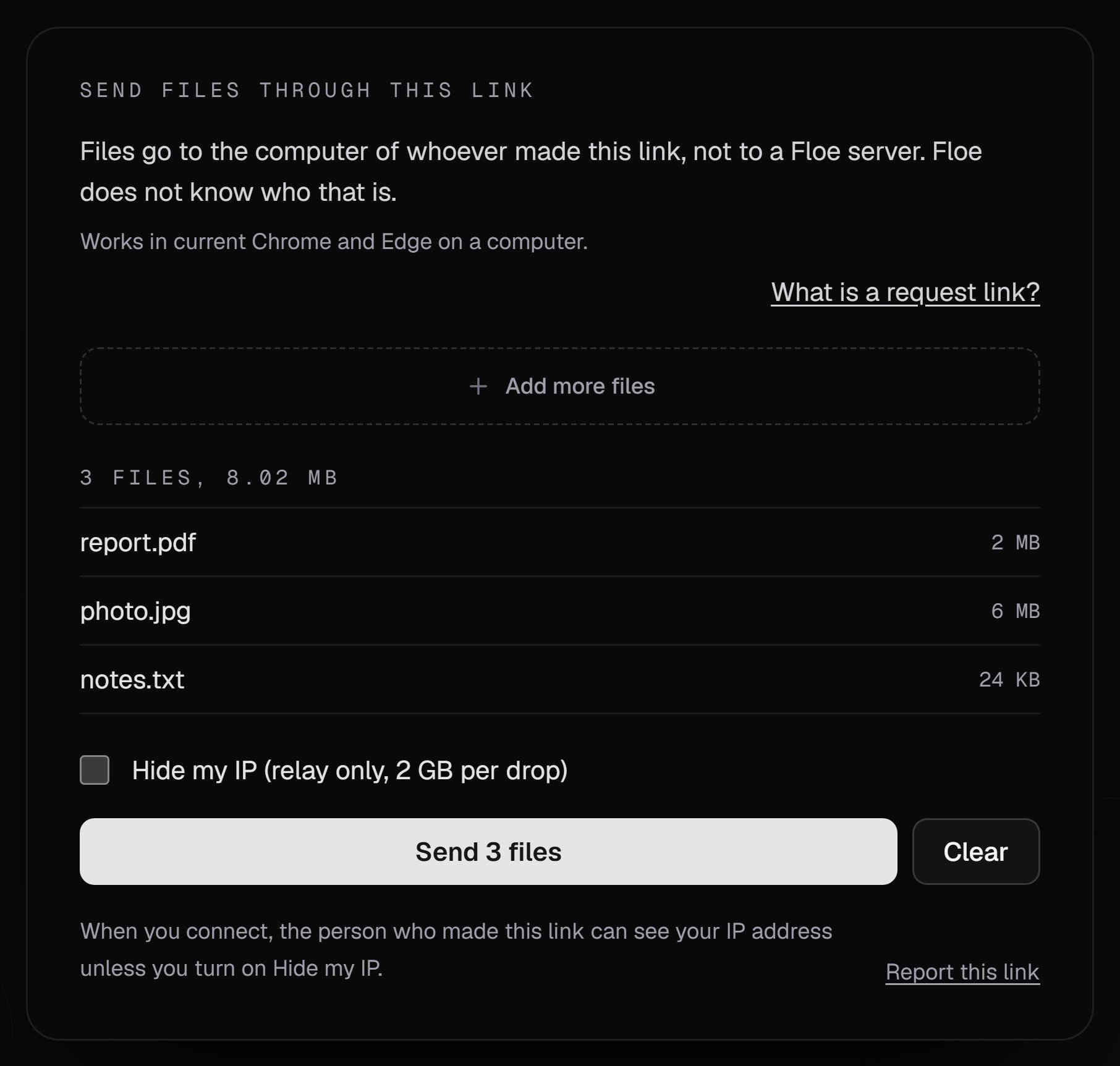
The page with three files chosen, before Send
Pick files
A file let go anywhere other than the drop area is not added. A drop can hold up to 10,000 files; for more, zip them first. For every limit on a drop, see Limits.- Picking again adds to the selection. A file you already picked, at the same path and size, is kept once. Clear empties the selection: there is no way to remove a single file.
- After the first pick, the drop area shrinks to an Add more files strip, which opens the file picker and still takes a dropped folder. Choose folder comes back after Clear.
- While a dropped folder is still being read, the drop area dims and Send stays off. A large folder can take a while.
- On a phone or tablet, the page shows “Keep this page open and your screen on.” above Send once files are picked.
Send and wait for them to accept
Click Send. The page reads “Connecting to their computer”. It has up to 20 seconds to reach Floe’s server, which introduces the two computers. Once the server has let you in, the two computers have up to 75 seconds to connect. Then the page reads “Waiting for them to accept” with a countdown, such as “They have 9 min to answer. Keep this page open.” The minutes refresh every 15 seconds. In the last minute the line reads “They have less than 1 min to answer. Keep this page open.” They have 9 minutes 45 seconds in all. Nothing is written to their computer until they click Accept. Some links accept by themselves: when the person who made the link turned on Auto-accept for it, sending can usually start at once. Cancel before they accept returns to your files, and you can send again. If they decline, or do not answer in time, nothing is sent, and Back to files returns to your selection.Keep the page open
The sending happens in your browser tab, so the tab has to stay open until the last file arrives. Keep the tab in front. While the page connects, waits or sends, your browser asks before the tab is closed or reloaded. The Privacy and Terms links at the bottom of the page ask the same way. For that time the page does not reload by itself either: when Floe’s web app is updated mid-drop, the reload waits until the attempt ends. See The page reloaded by itself. If you leave anyway, the drop stops. After a reload the page starts again with nothing picked. If they had already accepted, the link is used: ask for a new one. Before they accepted, the same link still works. From Send until the attempt ends, the page asks your browser to keep the screen on. The browser drops that whenever the tab is hidden, and the page asks again when you come back. It keeps the screen on and nothing more: closing a laptop’s lid can still put it to sleep. Once a drop has been sending for 1 minute, the page estimates the time left for the whole drop and adds advice:
The lines add up: a drop with more than 2 hours left shows the first two.
There is no resume. If the connection drops, the files that arrived stay on their computer. The rest,
including the file that was moving, has to be sent again through a new link.
Chrome and Edge can unload a background tab to save memory. If that happens during a drop, the drop stops.
When you come back, the page reloads on Connection lost with how many files arrived, such as “4 of 12
files arrived. Ask them for a new link to send the other 8.” The tab keeps only those two numbers, never a
file name, so the page cannot list which files arrived.
When the files arrive
Each file is listed under ARRIVED once their Floe has finished saving it. When every file has arrived, the page says so, for example ALL 12 FILES ARRIVED. Under it come the size and the time taken, counted from their Accept. The route, direct or relay, follows when the page could read it (“1.2 GB in 3m 10s.” when it could not). “Their app reports every file’s SHA-256 matched.” appears only when their Floe checked every file against the SHA-256 your browser computed, a fingerprint of each file’s contents. See File checks for when that line is missing, and SHA-256 matched for what it means. Cancel after they accepted asks first: “Stop sending?”, with “Files that already arrived stay on their computer. This link cannot be used again.” Keep sending carries on, and Stop ends the drop.What each side can see
On this page, you are the sender. The person who made the link sees a request with your file count and total size, and clicks Accept or Decline, unless the link accepts by itself. Their own page about it is Accept or decline.
Your IP address can show your internet provider and roughly where you are.
Floe’s server introduces the two computers and never receives the files. See
Security and privacy.
Report a link
Report this link, at the bottom of the card whenever you are choosing files, starts an email carrying the link’s id: the part before the#. It never carries the part after it, so a report cannot be used to send
files through the link.
On floe.one the email goes to Floe’s maintainers, at the address in
SECURITY.md, the one security reports use. On a
self-hosted server it goes to the address the person who runs that server
set for reports. If they set none, the page shows no
Report this link.
What the page shows
The Sending card also says “Keep this tab in front until the last file arrives.” Long paths are shortened
in the middle there, so the end of the file name always shows, and the ARRIVED list scrolls.
Five stopped cards offer Try again, and your files stay selected:
- “Their computer is not connected right now”
- “Request links are turned off right now”
- “Request links are not available on this Floe server.”
- “Couldn’t connect to their computer. Nothing was sent.”
- “Connection lost. Nothing was sent.”
- “Waiting for them to accept - Floe”
- “42% sent, 5 of 12 files - Floe”, refreshed every 5 seconds
- “All 12 files arrived - Floe”, or “1 file arrived - Floe”
- “Drop stopped - Floe”, for every stop and every lost connection
Messages
A link that ended shows “This link has ended” or “This link has already been used” for about 24 hours. After that, or sooner after a server restart, it reads “Their computer is not connected right now”. That is also what a link shows while the computer that made it is asleep or offline. If Try again keeps bringing it back, ask for a new link. These are the messages of the web app at floe.one. A web app that someone hosts themselves can run an older version, where a few of them read differently: see What an older web app shows.Before and while you send
A few notes on these:
- “Couldn’t connect to their computer.” also ends an attempt when the connection to Floe’s server is lost before the two computers connect, and when their Floe reopens the link while you are connecting.
- “This link has already been used” can also mean several tries in a row were made through the link. If you had just tried a few times, wait 1 minute and reload the page before you ask for a new link.
- After a failed or canceled attempt, a new one can stay on “Connecting to their computer” for up to 45 seconds. The page retries every 3 seconds while the server frees the place your last attempt held.
When their Floe stops the drop
The page shows one of these messages, then a line with how many files were saved, then the files that arrived under ARRIVED. The line reads, for example, “4 of 12 files were saved.” For a single file it reads “1 of 1 file was saved.”, and when nothing was saved, “Nothing was sent.”If something goes wrong
- “Their computer is not connected right now”: Floe has to be open on their PC, awake and online. See Troubleshooting.
- “This link has already been used”: a link takes one drop, so ask for a new one. See Troubleshooting.
- “They did not answer in time. Nothing was sent.”: they have 9 minutes 45 seconds to answer. See Troubleshooting.